Your coding agents, in your pocket.
Every GitHub Copilot and Claude agent session — in VS Code or the GitHub Copilot app — on your phone, tablet or another computer, with the same history streaming live. Reply, approve tool calls, switch models and get notified the moment an agent needs you.
Version 0.7.8 · VS Code 1.133+ or the GitHub Copilot app / CLI · Windows, macOS & Linux · iPhone, Android and any desktop browser
export function ThemeToggle() {
  const [theme, setTheme] = useTheme();
  return (
    <Switch
      checked={theme === 'dark'}
      onChange={(on) =>
        setTheme(on ? 'dark' : 'light')}
      label="Dark mode"
    />
  );
}
/pocket-pilotPocket Pilot is open in the panel: scan the QR code with your phone. It keeps running when you close this chat.
Pocket Pilot in one minute. Turn the sound on: it's better with it.
Everything you do at your desk.
Now from anywhere.
Pocket Pilot speaks VS Code's own Agent Host Protocol, so your phone isn't a remote screen. It's a real client of the sessions on your PC.
Same session. Same history. Live.
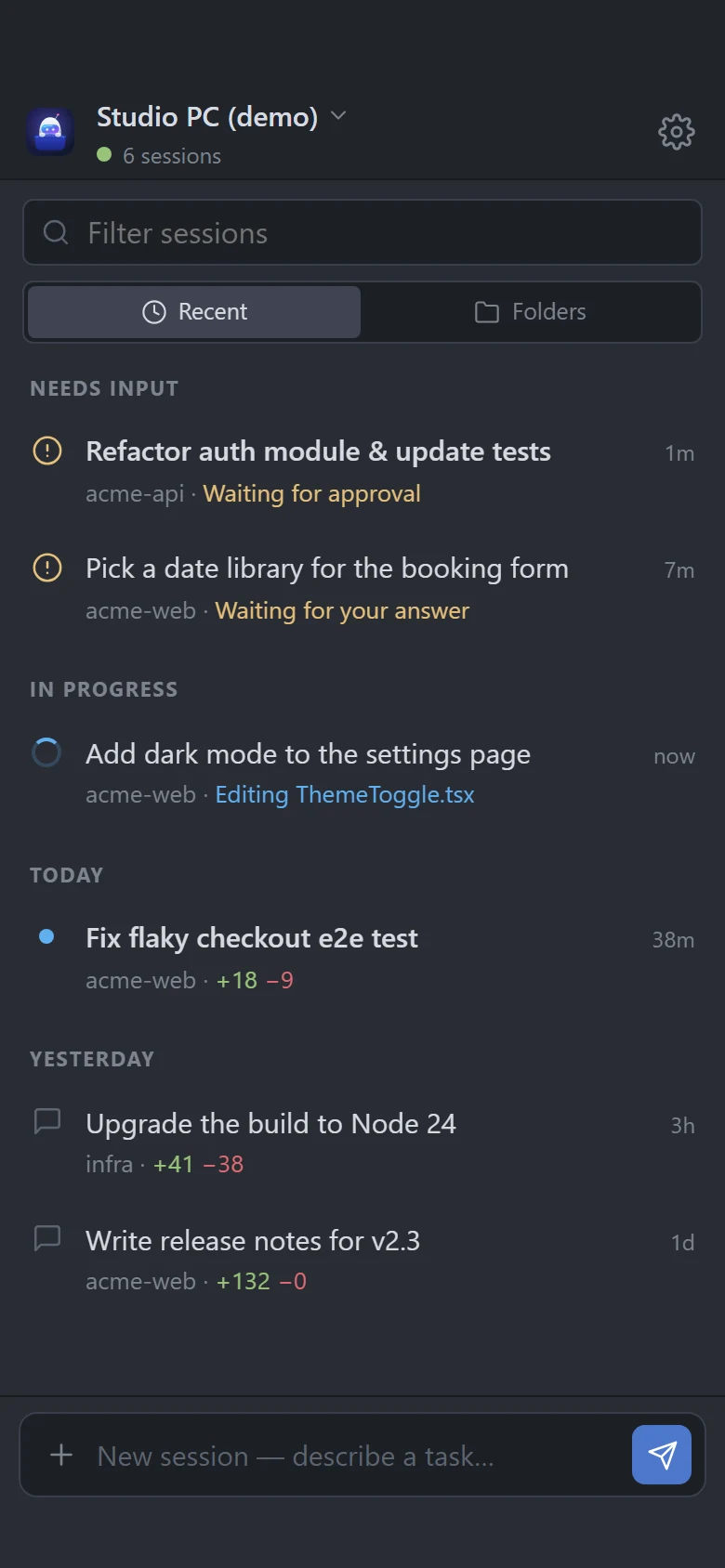
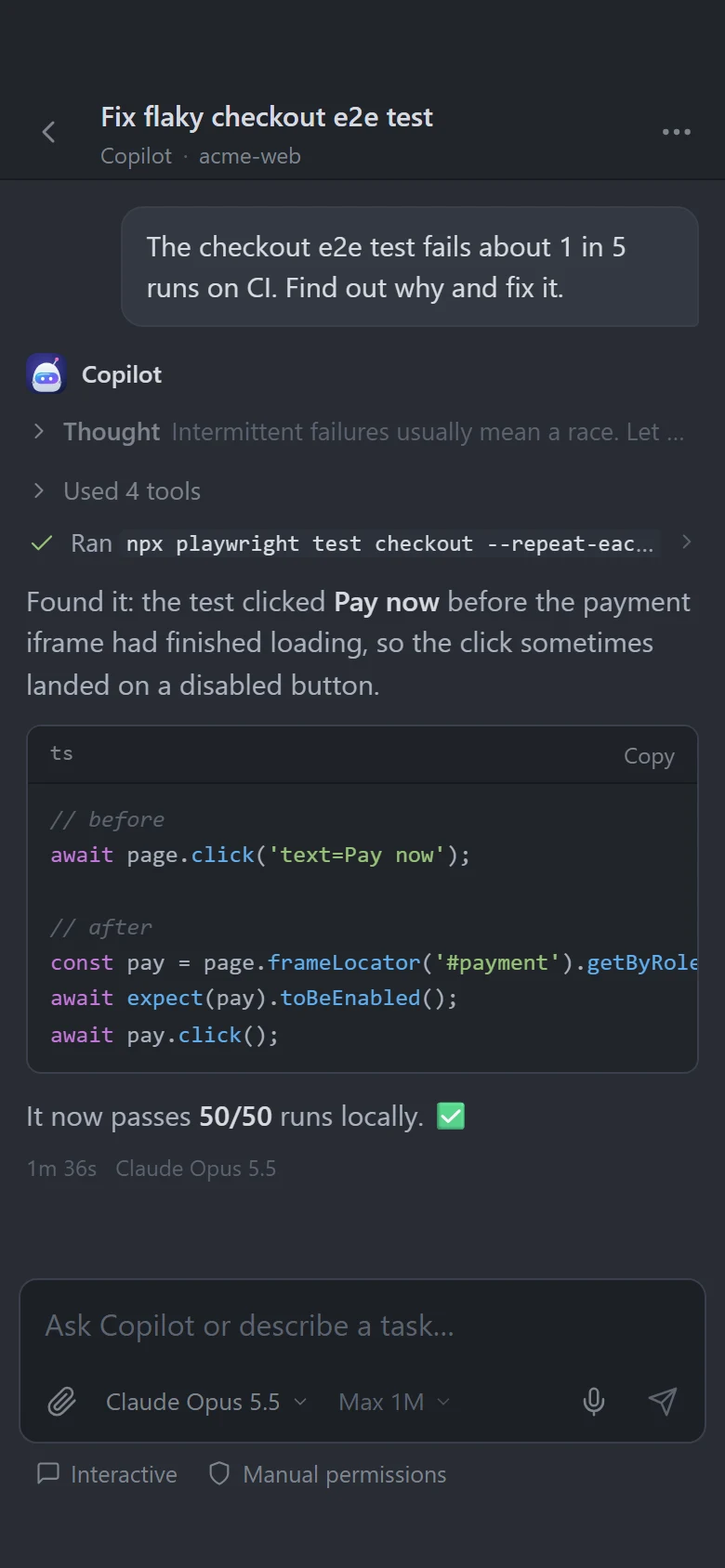
Your phone shows exactly what VS Code shows: messages, reasoning, tool calls and syntax-highlighted code, streaming as they happen in a familiar VS Code-style interface. Pick up any session where you left it and keep going.
- Every agent session from every VS Code window
- Queue follow-ups, steer a running agent or stop it
- Send photos, screenshots and files to the agent
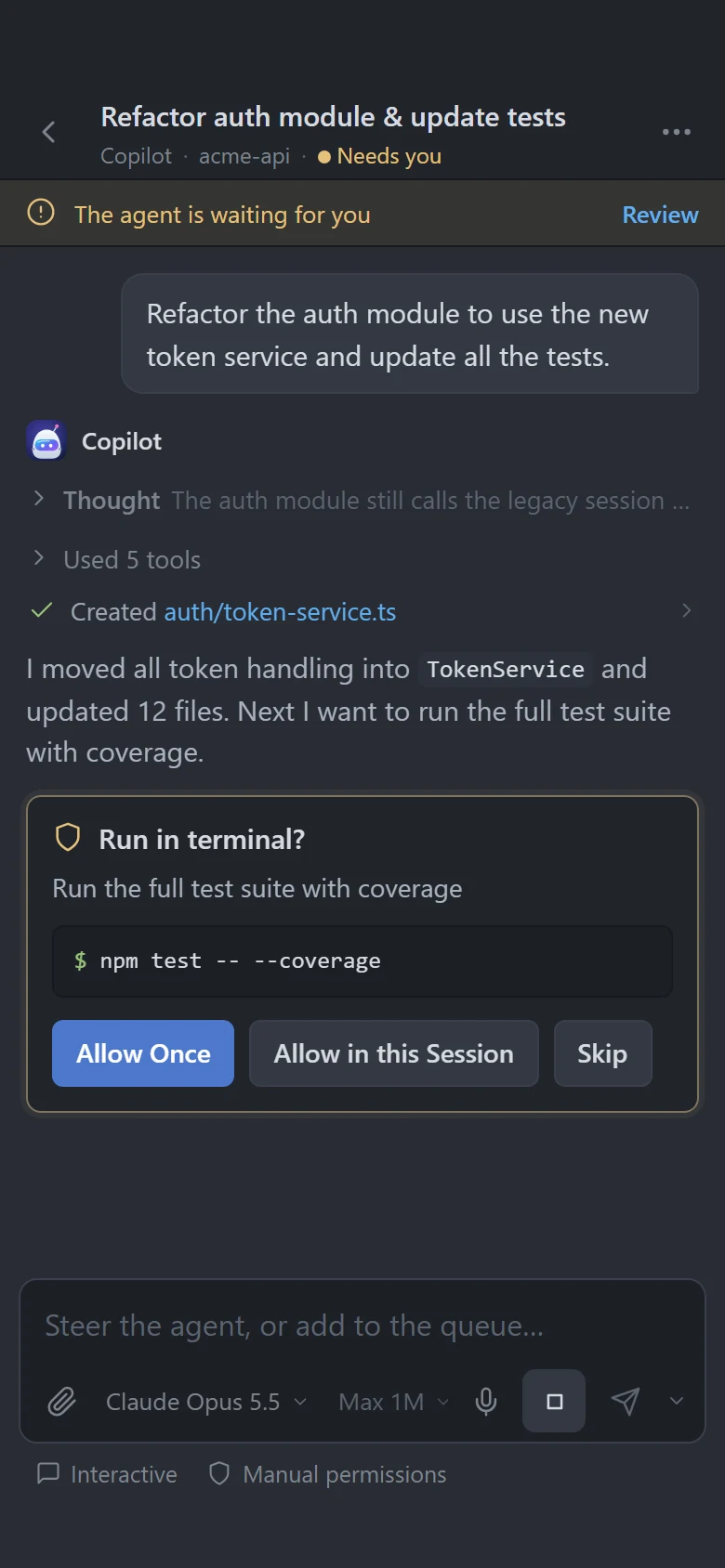
Approve in one tap.
When an agent wants to run a command or touch your files, your phone buzzes. See exactly what it wants to do and answer with the same options VS Code gives you.
- Allow once, allow for the session, or skip
- Answer the questions agents ask you
- Notifications for “needs you”, “done” and errors
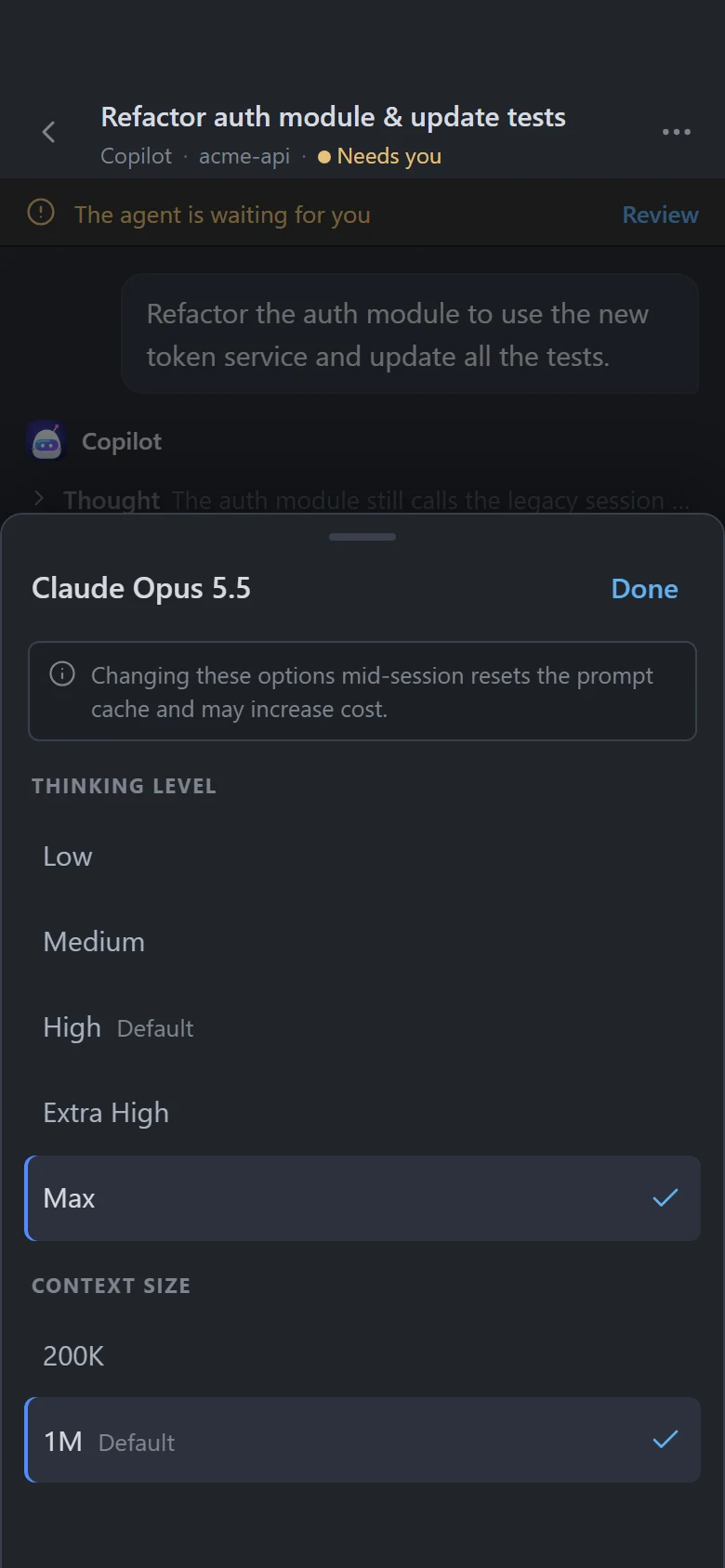
Your model. Your rules.
Pick any model available to you, then its thinking level and context size in a separate menu — just like VS Code. Your choice shows up in VS Code's model picker, and a change made in VS Code shows up on your phone.
- Thinking level from Low to Max
- Context size up to 1M tokens, where the model supports it
- The model list comes live from your PC
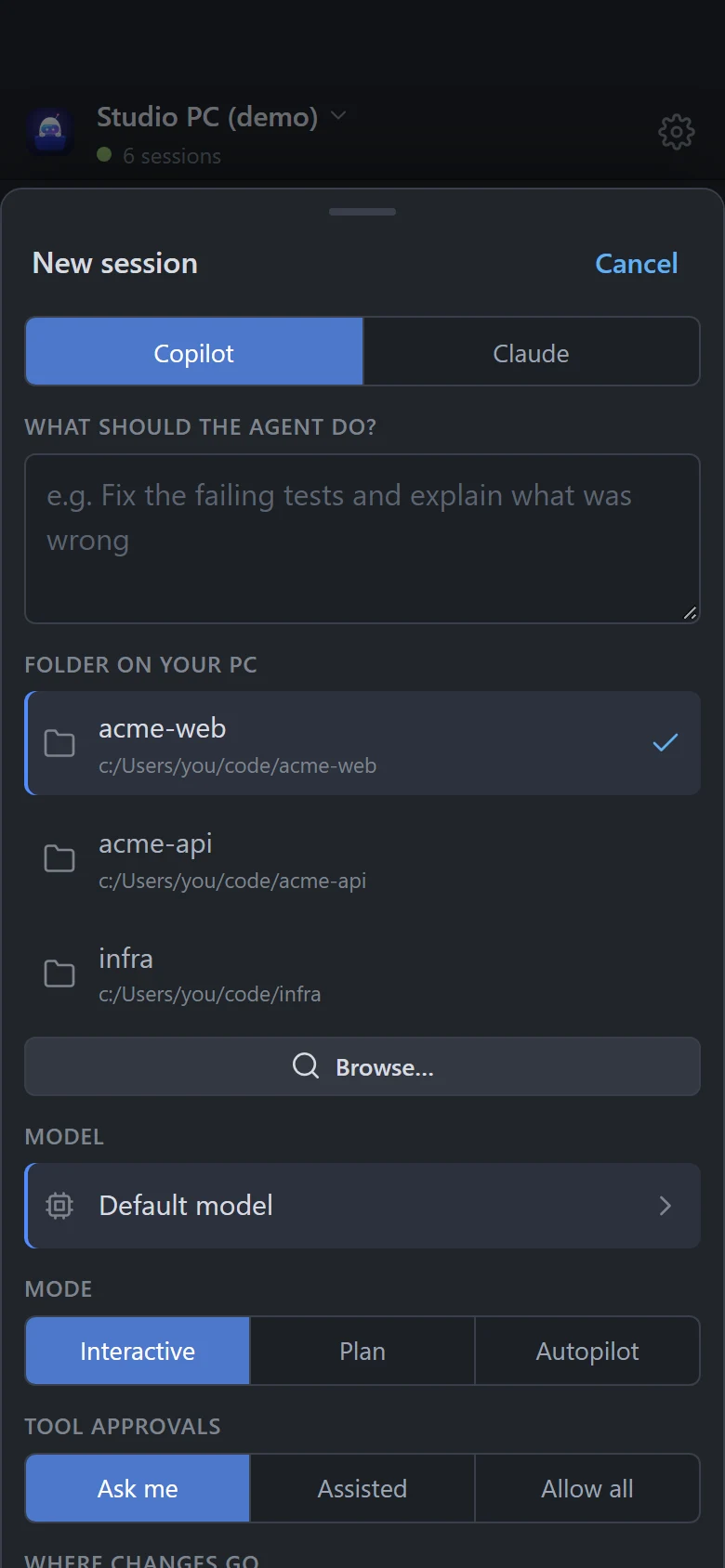
Start work from the couch.
Kick off a new session on your PC from your phone: choose a folder, describe the task, pick the model and mode, and keep the changes in a separate git worktree if you like.
- Recent folders plus a folder browser
- Copilot and Claude agents
- Shows up in VS Code right away
Organized like VS Code.
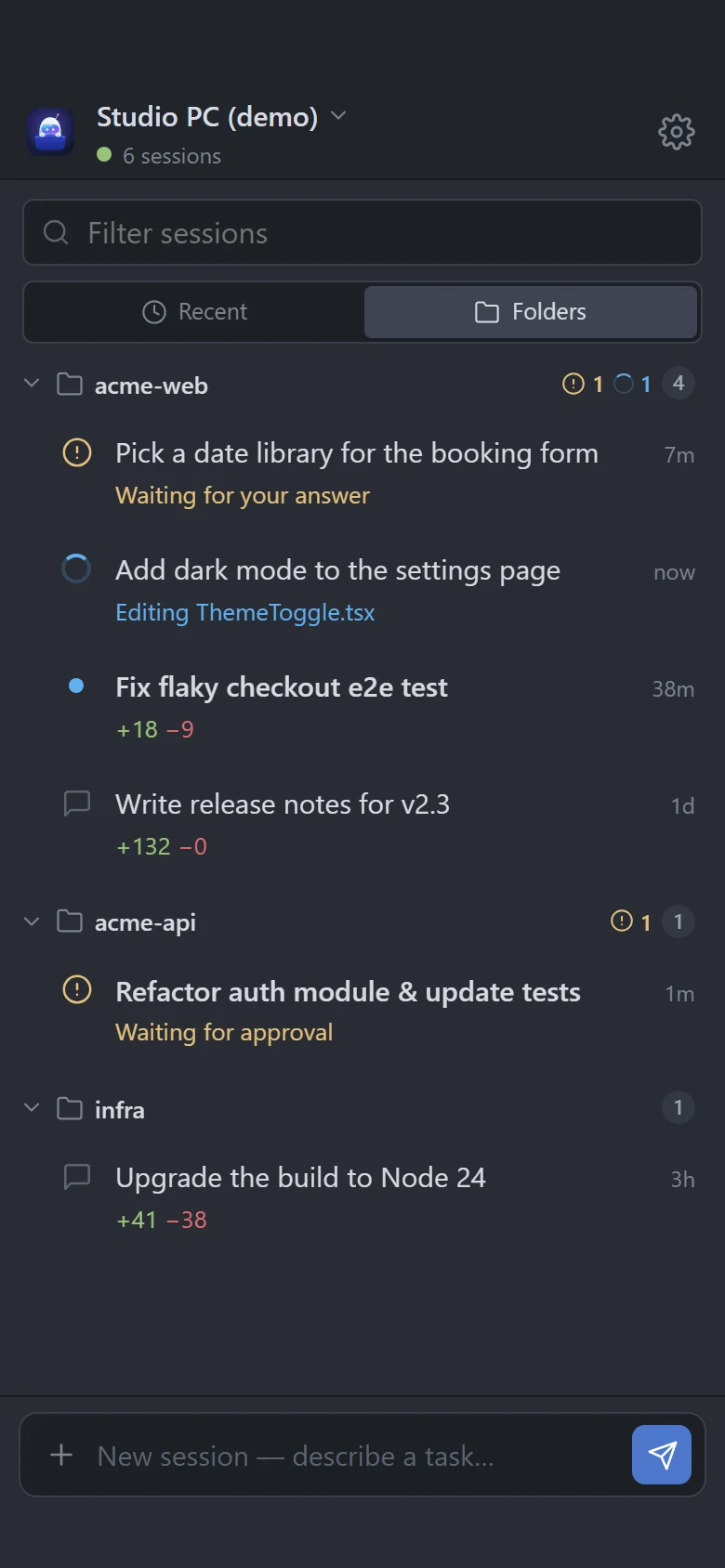
See what needs you first, or switch to Folders to browse sessions by project, with the lines each one added and removed, just like the Agents window in VS Code.
- Recent: needs you, working, then today, yesterday and older
- Folders: collapsible project groups with status badges
+added −removedline counts on every session
And the details you'd expect
Recent or by folder
Sessions by time, or grouped under their project folder with +added −removed counts, like VS Code's Agents window.
GitHub Copilot app too
A Copilot plugin brings the same app to your chats in the GitHub Copilot app and the Copilot CLI.
Push notifications
Standard Web Push, sent straight from your PC. No Firebase, no push account.
Multiple PCs
Pair your desktop and your laptop, and switch between them in one tap.
Auto-reconnect
If the tunnel URL changes, phones find your PC again through an encrypted secret gist.
Installable app
Add it to your Home Screen for a full-screen app that opens instantly.
Any network
A Cloudflare quick tunnel means no port forwarding, no VPN and no firewall changes.
Every window
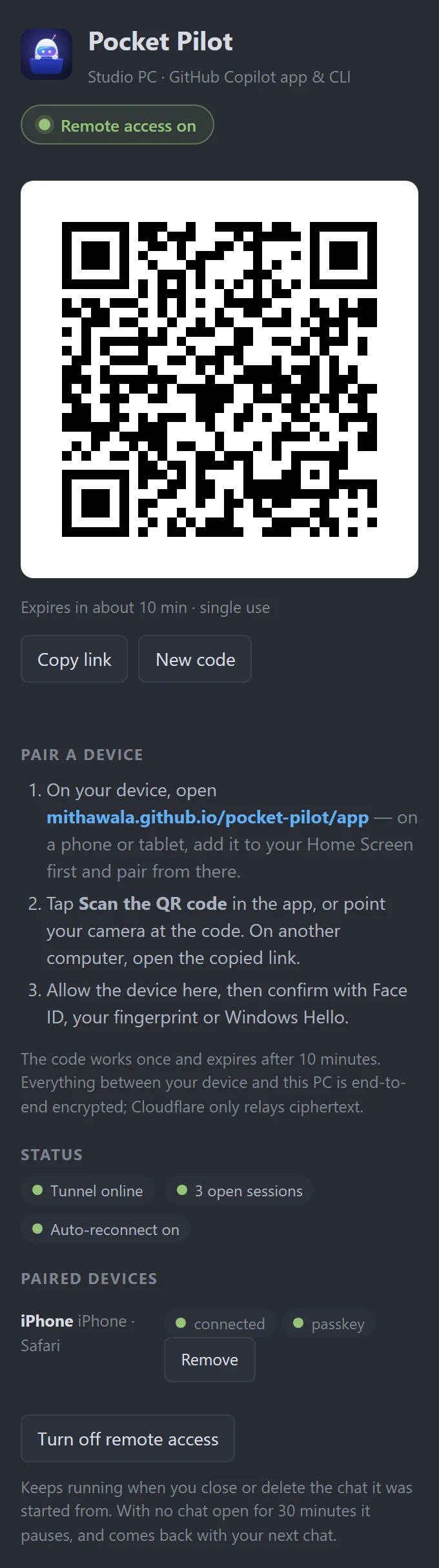
Each VS Code window shows remote access and its QR code. One hosts the tunnel; if you close it, another takes over.
Files & photos
Attach a photo of a whiteboard or a screenshot, see the screenshots pasted on your PC full screen with zoom, or preview the files the agent links to.
Steer or queue
While the agent works, a message steers it — or add it to the queue, or stop and send. Same choices as VS Code.
Dictate
Tap the microphone and talk; the text lands in the input so you can check it before sending.
One Dark & One Light
Atom's One Dark by default, with One Light or your phone's theme as options.
Your phone talks to your PC.
Nothing in between can listen.
There's no cloud service. The extension opens a free, encrypted path from your phone to the agent host that VS Code already runs on your PC.
Your phone
The Pocket Pilot app, a static PWA hosted on GitHub Pages
Cloudflare quick tunnel
Free, no account. It only ever sees ciphertext.
Your PC
The Pocket Pilot extension relays to VS Code's agent host (Copilot & Claude), or the plugin to the GitHub Copilot app
127.0.0.1 and publishes it through a Cloudflare quick tunnel. cloudflared is downloaded once from its official release and checksum-verified.Set up in two minutes.
Pick where your agents run. You'll need VS Code 1.133 or later, or the GitHub Copilot app (or CLI), and a phone with iOS 16.4+ or Android, or any other device with a current browser.
-
1
Install the extension
Get Pocket Pilot from the Visual Studio Marketplace: search for it in VS Code's Extensions view, or run:
Get it on the Marketplacecode --install-extension mithawala.pocket-pilotVS Code keeps it up to date. You can also download pocket-pilot.vsix and use Extensions → ··· → Install from VSIX…
-
2
Start remote access
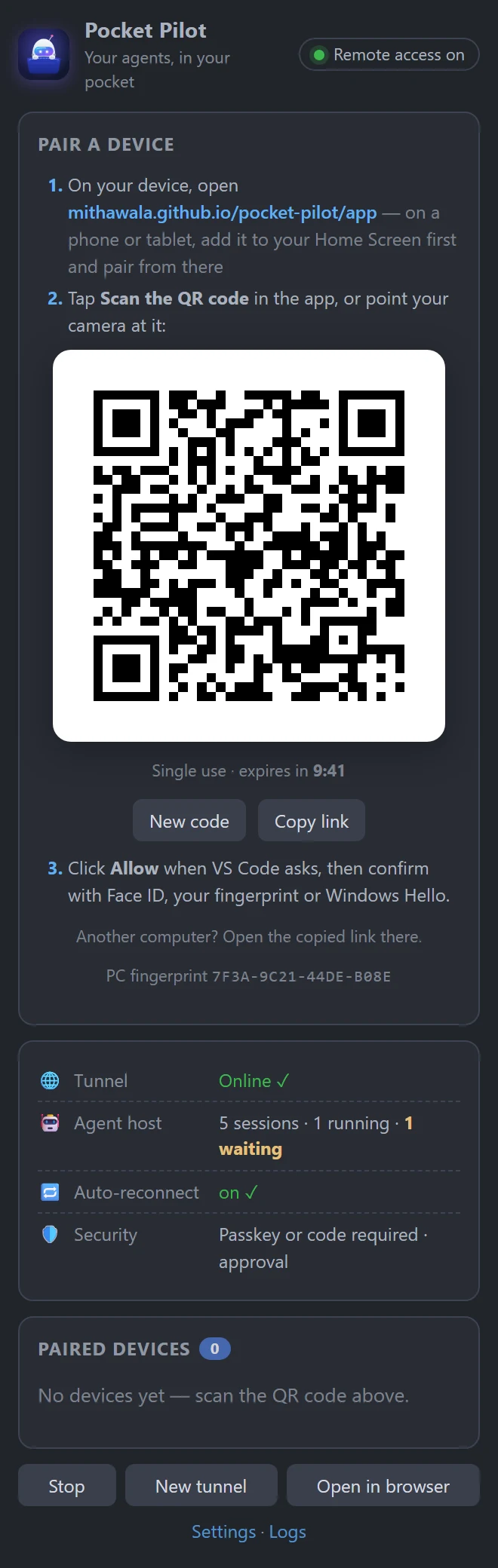
Open the Pocket Pilot panel in the activity bar and click Start remote access. The first time, VS Code asks you to:
- download
cloudflaredonce (about 55 MB, verified) - optionally turn on auto-reconnect (an encrypted secret gist, the only part that uses your GitHub account)
- download
-
3
Scan & pair your phone
Scan the QR code, check that the fingerprint matches, click Allow in VS Code and set up Face ID or your fingerprint. For a tablet or another computer, click Copy link in the panel and open it there.
- Open the app in Safari (or Chrome or Edge) and tap Share → Add to Home Screen before you pair.
- Open Pocket Pilot from your Home Screen and tap Scan the QR code (not the Camera app: it opens Safari).
- iPhone keeps the Home Screen app apart from Safari, and only it can show notifications, so always use that icon. Paired in Safari first? Pair the Home Screen app once more.
- Point your camera at the QR code in VS Code and open the link.
- Tap Install (or Chrome menu → Add to Home screen) for an app-like experience.
- Notifications work in the browser too.
9:41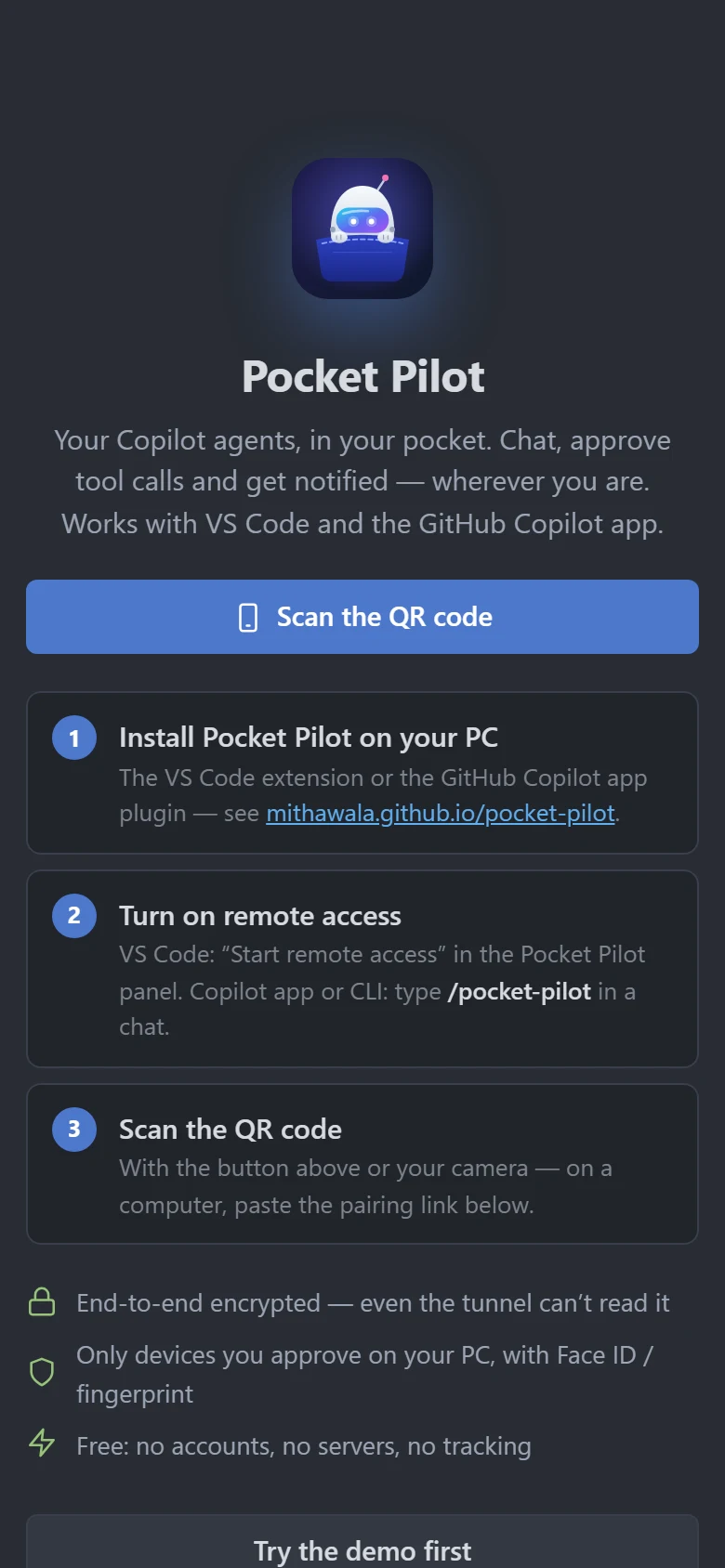
-
4
Turn on notifications
Tap Enable notifications, and your agents can reach you when they need approval, have a question, or finish.
-
1
Install the plugin
Run these in a terminal. The GitHub Copilot app uses the same plugins, so restart it afterwards.
copilot plugin marketplace add mithawala/pocket-pilotcopilot plugin install pocket-pilot@pocket-pilotIt shows up in the app under Customize → Extensions: a plugin brings a small extension that runs with your chats. Keep its switch on.
-
2
Open Pocket Pilot
Type
/pocket-pilotin any chat, or just ask “pair my phone”, and confirm. In the GitHub Copilot app the Pocket Pilot panel opens next to the chat; the CLI opens it in your browser and prints the QR code. The first time,cloudflaredis downloaded once (about 55 MB, verified). -
3
Scan, allow, done
Scan the code with your phone or tablet (on another computer, open the copied link), click Allow in the panel or the chat, and set up Face ID or your fingerprint. Every chat you use in the app or the CLI now shows up on your devices.
- Close or delete the chat you started it from: another open chat takes over within seconds, at the same address
/pocket-pilot statusshows the tunnel and your devices;/pocket-pilot offor Turn off remote access in the panel closes the tunnel, and Turn on remote access opens it again- A chat appears on your devices once it has a message. Start new sessions from your phone too: they run in the background on your PC.
- Pair VS Code and the app separately; the phone switches between them like between two PCs
-
4
Turn on notifications
Tap Enable notifications, and your agents can reach you when they need approval, have a question, or finish.

Open the app on your phone
Scan this code with your phone, or visit mithawala.github.io/pocket-pilot/app. You can try the demo without pairing anything.
Private by design.
End-to-end encrypted, from your phone to your PC.
Your agents can run commands on your PC, so every step between your device and your PC is locked down: encrypted, approved by you, and limited to what Pocket Pilot needs.
End-to-end encrypted
ECDH P-256 with forward secrecy and AES-256-GCM on every frame, with strict sequence numbers. Cloudflare, GitHub and your network only see ciphertext.
Paired devices only
QR codes are single-use, expire after 10 minutes and must be approved on your PC. Each device pins your PC's key fingerprint.
Face ID & fingerprint
Each device registers a passkey, or uses codes from an authenticator app. Your PC checks it itself and asks again after 12 hours, or at every connection if you prefer.
Keys that can't leave
Device keys are non-extractable WebCrypto keys. The agent host's token never leaves your PC, and Pocket Pilot never touches your GitHub sign-in.
Least privilege
The relay forwards only an allow-list of agent protocol methods: no terminals and no file writes, and file reads stay inside your session folders.
Instant revoke
Remove a device in the Pocket Pilot panel and it's disconnected immediately. Reset identity invalidates every pairing at once.
Try it right here.
This is the real app, connected to a scripted demo PC with sample sessions. Nothing is paired and nothing leaves your browser.
- Open Refactor auth module and approve the test run
- Change the model, thinking level or mode
- Send a message, or start a new session from the bar at the bottom
Questions, answered.
How is this different from Copilot's built-in /remote?
GitHub's remote control (/remote on or copilot --remote) streams a Copilot CLI session to GitHub.com and the GitHub Mobile app. It's official, covers the terminal, VS Code and JetBrains, and sits right next to your cloud agents and pull requests on GitHub. Pocket Pilot connects your phone straight to your PC instead, to VS Code, the GitHub Copilot app or the Copilot CLI: every agent session shows up without switching it on (in VS Code, Claude sessions too), you can start new sessions on your PC from your phone, and the link is end-to-end encrypted, so no copy of the session is stored in a cloud. See the full comparison.
Which sessions show up?
Every session hosted by VS Code's agent host, including GitHub Copilot (Copilot CLI) and Claude agent sessions, from every open VS Code window. Classic chat-panel conversations that don't run in the agent host aren't part of the protocol, so they don't show up. With the plugin, the chats you use in the GitHub Copilot app and the Copilot CLI show up too.
Does it work with the GitHub Copilot app?
Yes. Install the Pocket Pilot plugin and type /pocket-pilot in a chat: the Pocket Pilot panel opens next to it with the QR code. The plugin runs with the app's own chats and uses the same encrypted tunnel, pairing, passkeys and notifications as the VS Code extension. Approvals and questions can be answered on the PC or the phone; whichever answers first wins.
What happens if I close or delete the chat I ran /pocket-pilot in?
Nothing you'd notice. Remote access isn't tied to that chat: another open chat takes over within seconds, the Cloudflare tunnel keeps its address, and your devices reconnect by themselves. With no chat open, it waits, and your devices reconnect as soon as you open a chat again, even after restarting the app. To turn it off, run /pocket-pilot off or click Turn off in the Pocket Pilot panel.
Does my PC have to stay on?
Yes. VS Code (or the GitHub Copilot app / CLI) must be running and the PC awake. If the VS Code window running Pocket Pilot closes, another window takes over automatically; in the GitHub Copilot app, another open chat does.
Does it work on iPhone?
Yes, in Safari, Chrome and Edge. Add the app to your Home Screen before you pair, then pair with the scanner built into the app: that gets you notifications (iOS 16.4+) and a full-screen app. iPhone keeps the Home Screen app apart from the browser, so a pairing made in the browser doesn't carry over; if that happened, pair the Home Screen app once more and remove the browser's entry from your paired devices. The app walks you through it.
Can I pair a tablet or another computer?
Yes, any device with a current browser. Scan the QR code on a phone or tablet; on a computer, click Copy link in the Pocket Pilot panel and open the link there. The passkey uses Face ID, your fingerprint, Windows Hello or the screen lock (or use codes from an authenticator app), and wide screens get a desktop layout with your sessions next to the chat.
Which apps can keep the passkey? Can I use Microsoft Authenticator?
The passkey goes in the Passwords app (iCloud Keychain), Google Password Manager, 1Password, Bitwarden or another password manager. Microsoft Authenticator only keeps passkeys for Microsoft work and school accounts, and Google Authenticator keeps none, so to use one of them, choose A code from an authenticator app when pairing: copy the setup key, add it in the app (Microsoft Authenticator: + → Other (Google, Facebook, etc.) → Or enter code manually) and enter the code it shows. Pocket Pilot then asks for a code every 12 hours by default. If a device can't use its passkey anymore (say you turned off the app that kept it), the app offers Set up this device again: allow it on your PC and save a new passkey or use an authenticator app, without pairing again.
I have several VS Code windows open. Which one do I use?
Any of them. One window hosts the tunnel, and every other window shows the same panel: the QR code, the tunnel, your paired devices. Buttons work from any window, and a device's pairing request appears in the window you're using. Your devices see the sessions of all windows either way.
Why is Pocket Pilot listed under Extensions in the Copilot app?
The plugin brings a small extension that runs alongside your chats; that's how they reach your phone. Customize → Extensions lists it as pocket-pilot · Plugin: pocket-pilot, and its switch turns Pocket Pilot on or off.
Can Cloudflare, GitHub or anyone else read my code?
Not along the way. Everything between your phone and your PC is end-to-end encrypted, so the tunnel only relays ciphertext, and nothing is stored in a cloud. Your prompts still go to the AI model exactly as they do on your PC. The optional auto-reconnect gist only holds your PC's current address, encrypted with a key that only your paired devices have.
Does Pocket Pilot need my GitHub account?
Not for remote access. VS Code and the GitHub Copilot app stay signed in to GitHub on their own, and Pocket Pilot never touches that sign-in or your token. Only the optional auto-reconnect asks to use your GitHub account once, to keep your PC's encrypted address in a secret gist.
What's the auto-reconnect gist on my GitHub account?
One secret gist, Pocket Pilot · encrypted addresses of your PCs, with one small file per PC. Each file holds only that PC's current tunnel address, encrypted with a key that only its paired devices have, so GitHub or anyone who finds it sees nothing useful. Pocket Pilot updates a PC's file when its address changes (after a reboot or New tunnel); your devices read it without signing in and reconnect by themselves. You can turn auto-reconnect off and delete the gist any time.
What if I lose a device?
Remove it in the Pocket Pilot panel in VS Code or the GitHub Copilot app and it's disconnected instantly, or run Pocket Pilot: Reset Identity to invalidate every pairing. Anyone holding the device would also need your Face ID, fingerprint or authenticator app.
Is it really free?
Yes. Cloudflare quick tunnels are free and need no account, the app is a static site on GitHub Pages, and notifications use your phone's built-in push service. Pocket Pilot has no servers and no paid tier, and you may use it at work too.
Is Pocket Pilot open source?
Its source code is public on GitHub, so you can read and audit every line, suggest changes and self-host the app. It's licensed under the PolyForm Shield License 1.0.0: you may use it for free for anything, including work, but not offer a competing product such as a copy, a rebrand or a paid version. That makes it source-available rather than open source.
How do I update?
From the VS Code Marketplace, VS Code updates Pocket Pilot for you. If you installed the .vsix, the extension checks for new releases and offers a one-click Update (or run Pocket Pilot: Check for Updates); to get Marketplace updates instead, check Auto Update in Pocket Pilot's gear menu in the Extensions view. For the Copilot app, click Update on the app's Plugins page (or run copilot plugin update pocket-pilot@pocket-pilot), even with VS Code and the app open; the Pocket Pilot panel tells you when there's a new version, and the new one takes over by itself. The phone app updates itself when you open it or it comes back to the screen.
The Copilot app says "Access is denied (os error 5)" when updating
That's Windows refusing to move the plugin's folder because another program keeps part of it open: VS Code does that with the skills folder of every installed Copilot plugin, and Pocket Pilot up to 0.7.0 still has one. Quit VS Code once (or delete that skills folder in %USERPROFILE%\.copilot\installed-plugins\pocket-pilot\pocket-pilot) and click Update again. From 0.7.1 on, updating and uninstalling work with VS Code open.
How do I uninstall the Copilot app plugin?
Run /pocket-pilot off, then remove it on the app's Plugins page or run copilot plugin uninstall pocket-pilot@pocket-pilot in a terminal.
My network blocks the tunnel. Now what?
Quick tunnels need outbound port 7844. In VS Code, set pocketPilot.tunnel.mode to custom and use a tunnel your network allows, such as a named Cloudflare tunnel, Dev Tunnels or Tailscale Funnel.
Is this an official Microsoft or GitHub product?
No. Pocket Pilot is an independent project by Asif Mithawala, built on the Agent Host Protocol that VS Code exposes locally.
Pocket Pilot vs. Copilot's /remote
GitHub Copilot has built-in remote control: /remote on (or copilot --remote) streams a Copilot CLI session to GitHub.com and the GitHub Mobile app. It's a good, official option. Here's how the two differ, so you can pick one, or use both.
/remote on or copilot --remote (the CLI can default to it). VS Code also needs the github.copilot.chat.cli.remote.enabled setting, and its docs list a workspace that maps to a GitHub repository./pocket-pilot). All sessions show up, including ones you start later.Choose /remote when…
- your organization provides it and you want the officially supported route
- you also run Copilot in JetBrains
- you want it all in GitHub Mobile, next to cloud agent sessions and pull requests you can review and merge
- your network doesn't allow tunnels
Choose Pocket Pilot when…
- you want every agent session, in VS Code or the GitHub Copilot app, on your phone without switching each one on
- you want to start new sessions on your own PC from your phone
- you use Claude sessions in VS Code
- you want the phone link end-to-end encrypted, with no copy of the session in a cloud
- you want model, thinking level and context size controls, or a desktop browser layout
They work side by side: a session with /remote on still shows up in Pocket Pilot. Either way, your prompts go to the AI model exactly as they do on your PC; what differs is how your phone reaches the session. If your organization has turned remote control off, check with them before using Pocket Pilot for work. It isn't a way around company policy.
Sources: GitHub Docs, About remote control of Copilot CLI sessions and Steering a Copilot CLI session from another device; GitHub Changelog, remote control generally available and GitHub Mobile live notifications; VS Code docs, agent harnesses. Checked in September 2026.